User Invitation via Course Manager
How can I invite Learners to the platform?
Send Invites Using the User Onboarding Tool
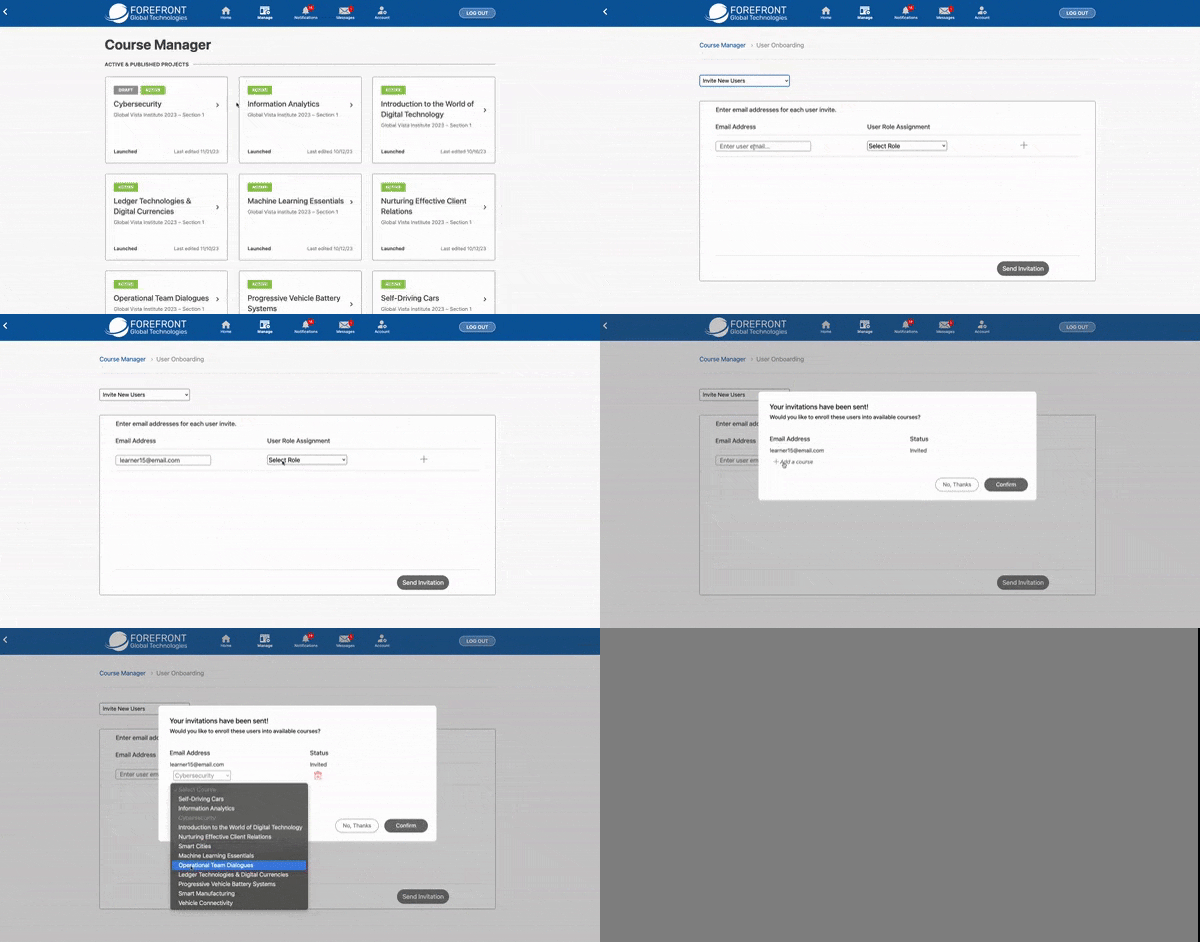
- Go to the Course Manager page.
- Under Administrative Tools, click User Onboarding.
- From the drop-down menu, select Invite New Users.
- Enter the email addresses of the learners you want to enroll.
- For each learner, select their role from the User Role Assignment dropdown menu.
- Click the + sign to add the learner to the list. Important: Make sure to click the + sign after each learner you add to the list. If you do not click the + sign, the invitation will not be sent.
- Once you have added all of the learners you want to enroll, click Send Invitations.
- The learners will receive an email invitation to register for the learning environment.
- Once the learners have registered, you can pre-enroll them into the course by clicking the dropdown menu next to their name and selecting the course.
How do I know if a Learner has accepted the invite?
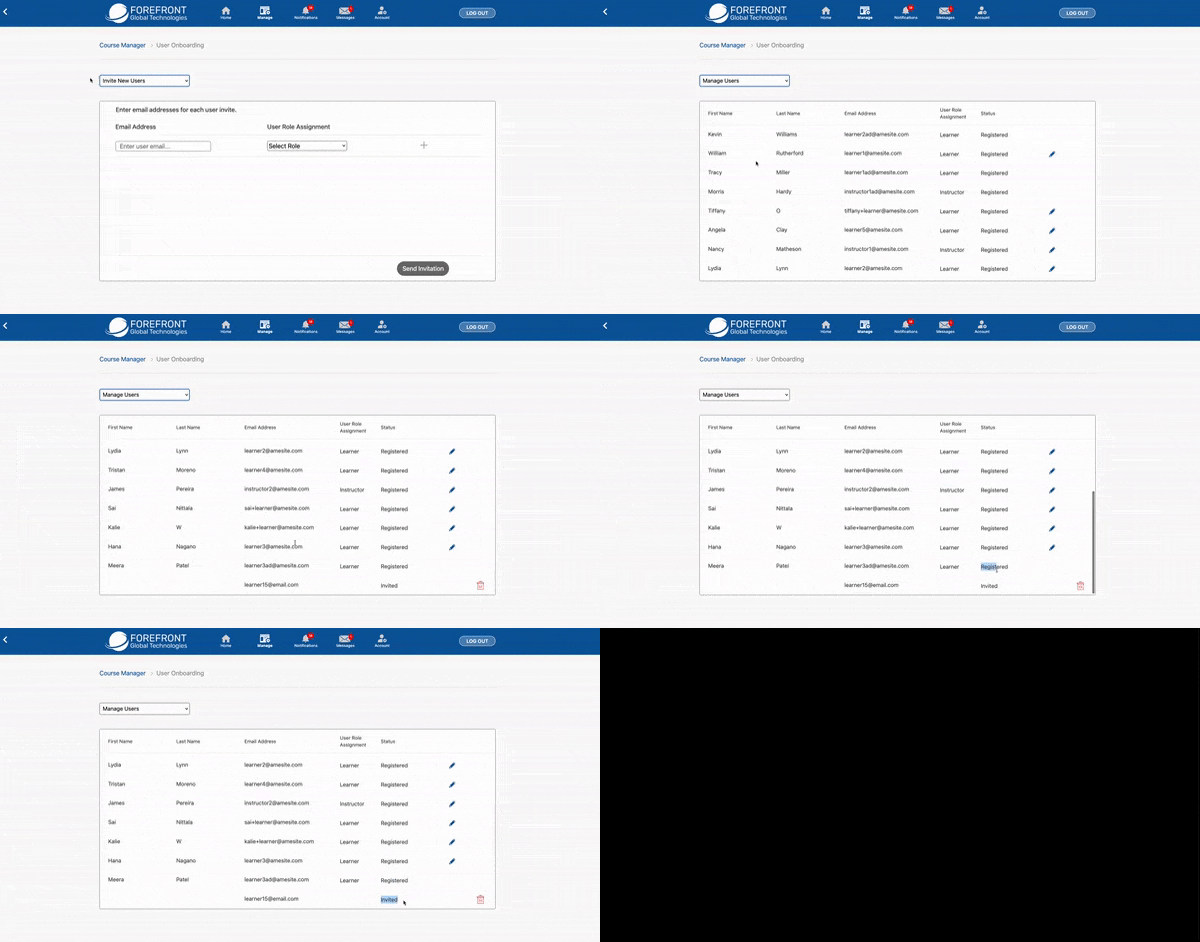
Click Manage Users in the drop-down menu. The learner's status will be listed to the right of their role assignment.
- Registered: The learner has accepted the registration invitation and has gained access to the learning environment.
- Invited: The learner has not yet accepted their invitation.
My Learner spelled their name wrong. Can I update that for them?
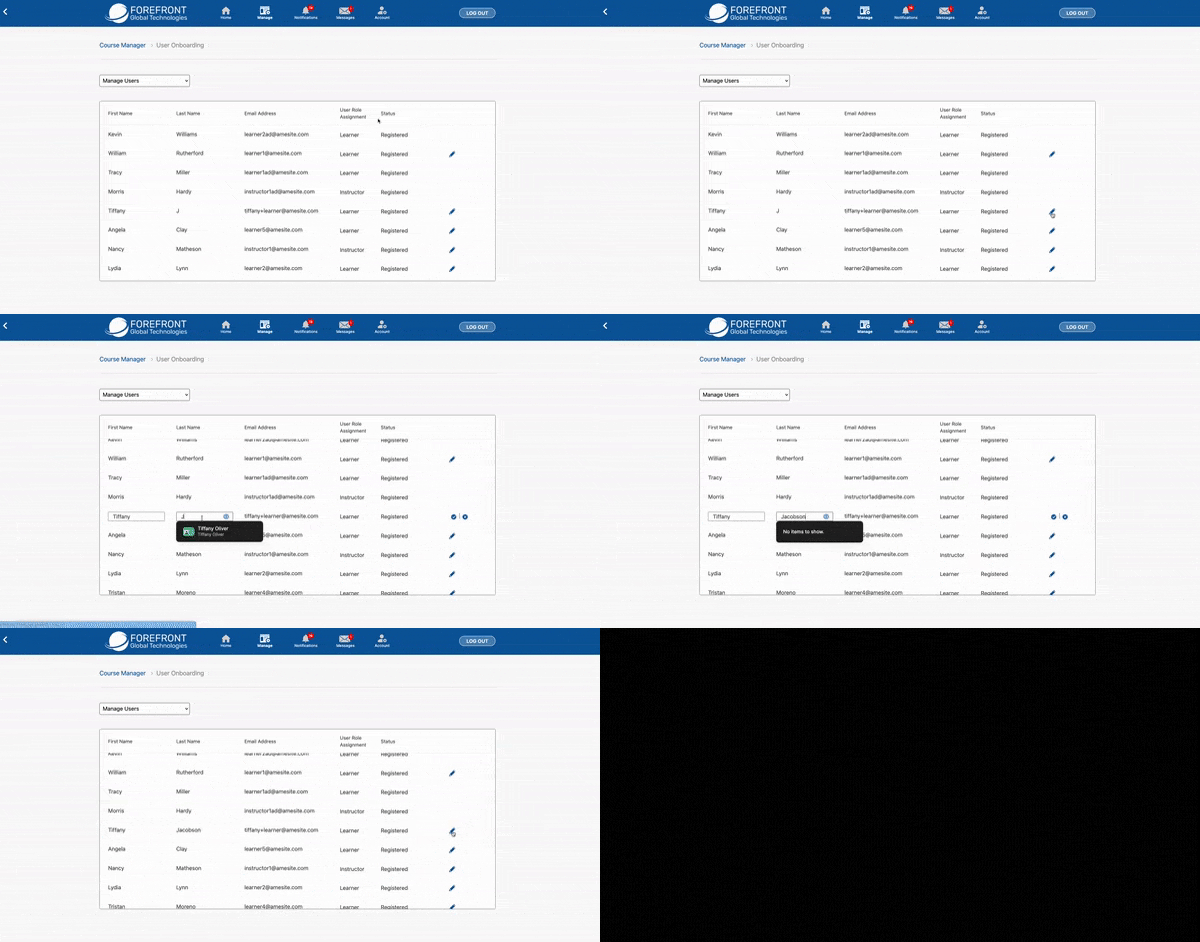
- While in Manage Users, click the pencil icon to the right of the user's info.
- Edit First Name or Last Name then click the checkmark to save.