Common Login Questions
How do I access my courses?
Google Chrome is Amesite's preferred browser of choice.
- Check your email for an invitation to the course. Click the link to complete registration.
- Once you have registered, you can access your courses by clicking Courses in the left menu after logging in.

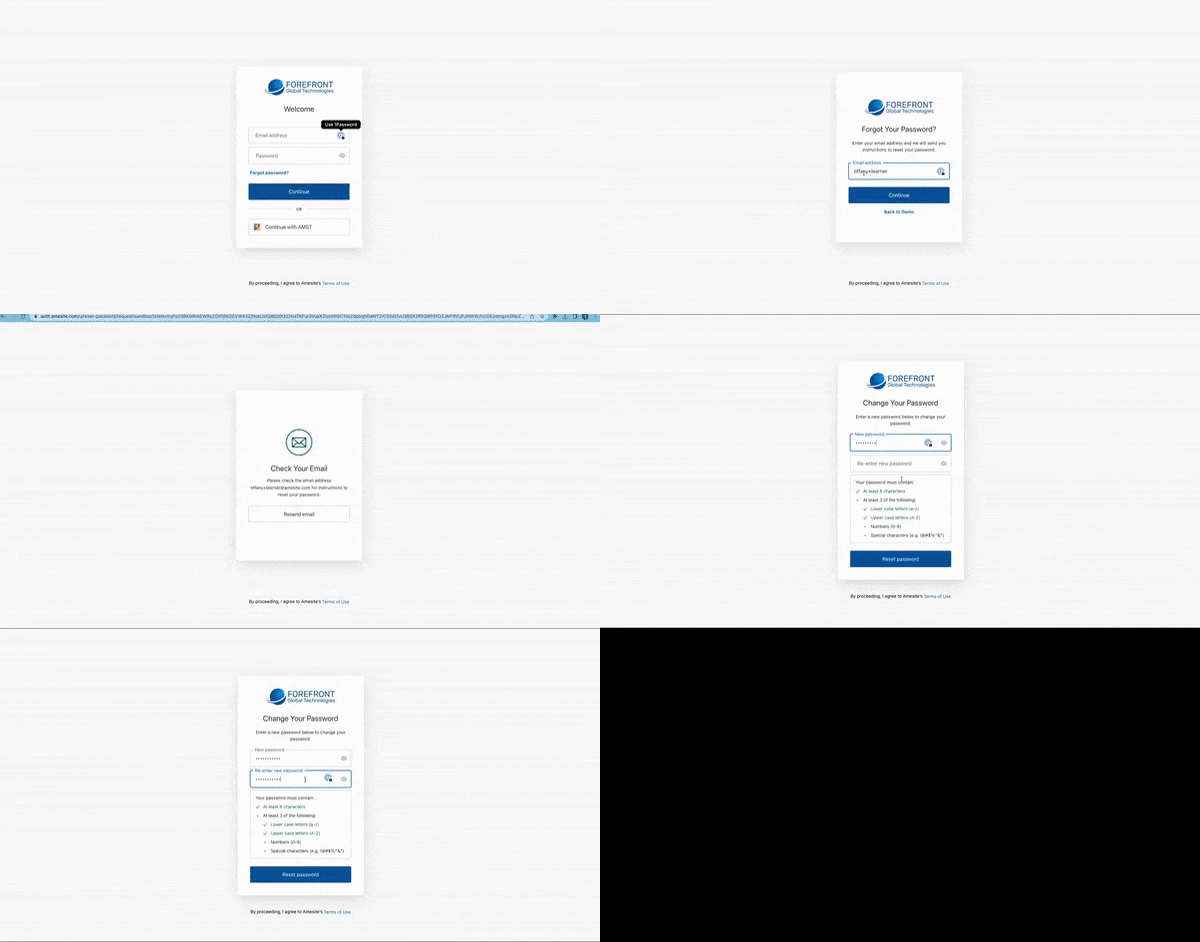
How do I reset my password?
- On the login page, click Forgot password?
- Check your email and click the link to reset.
- Login with your new password.
I'm having trouble logging in. Help!
Perform a Hard Refresh:
- Windows/Linux: Hold down Ctrl and click the Reload button. Or, Hold down Ctrl and press F5.
- Mac OS: Hold down ⌘ Cmd and Shift and then press R.
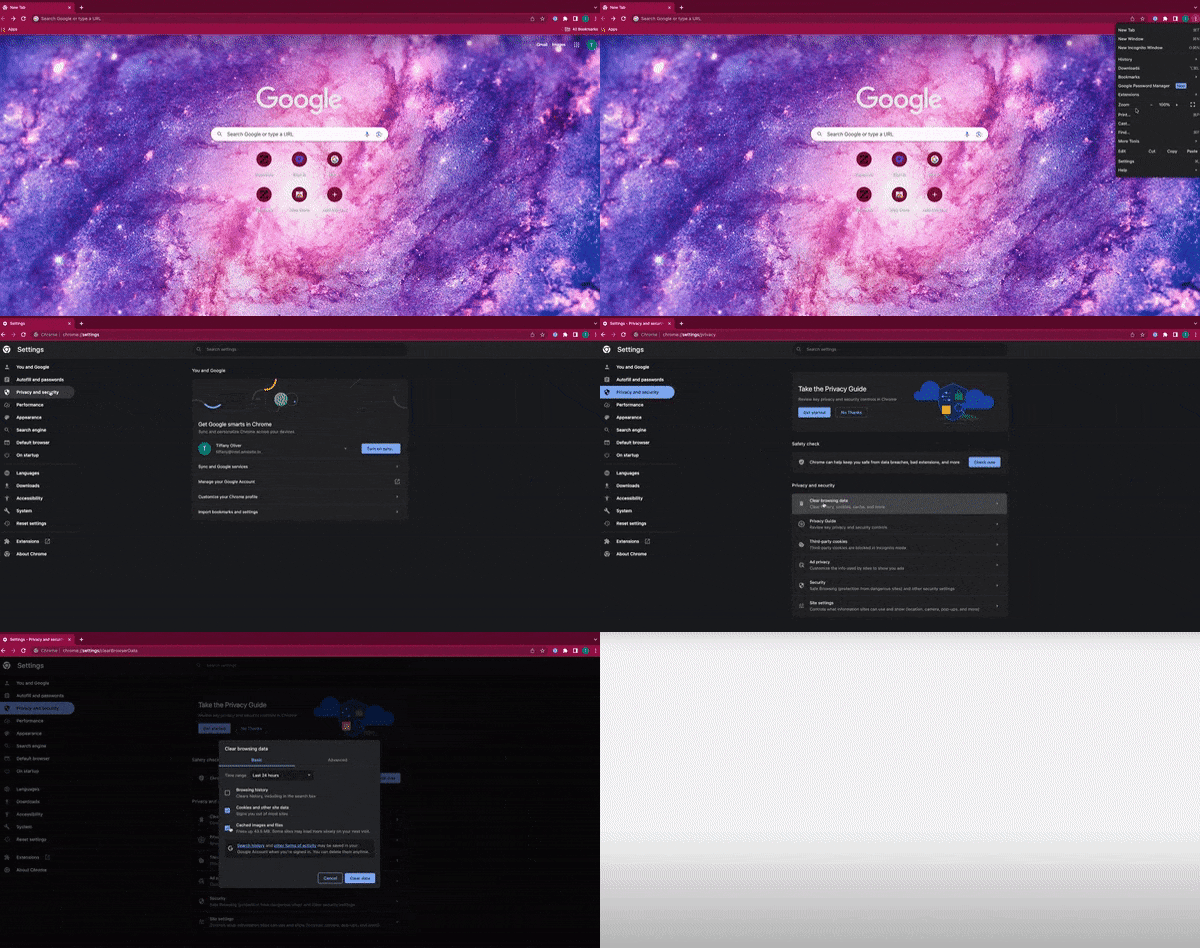
Clear your Cache:
- On your computer, open Chrome.
- At the top right, click More Settings.
- Click Privacy and Security: Clear Browsing data.
- Click the checkboxes for Cookies and other site data, and Cached images and files.
- To confirm, click Clear data.
- Return to the login page to continue.
No results found


